Image Viewer for Large, Detailed Photos
One big image in a frame, and four ways to look around it: drag it with a minimap, zoom with the mouse wheel, let it pan by itself, or magnify the spot under the cursor. Try each one on this page.
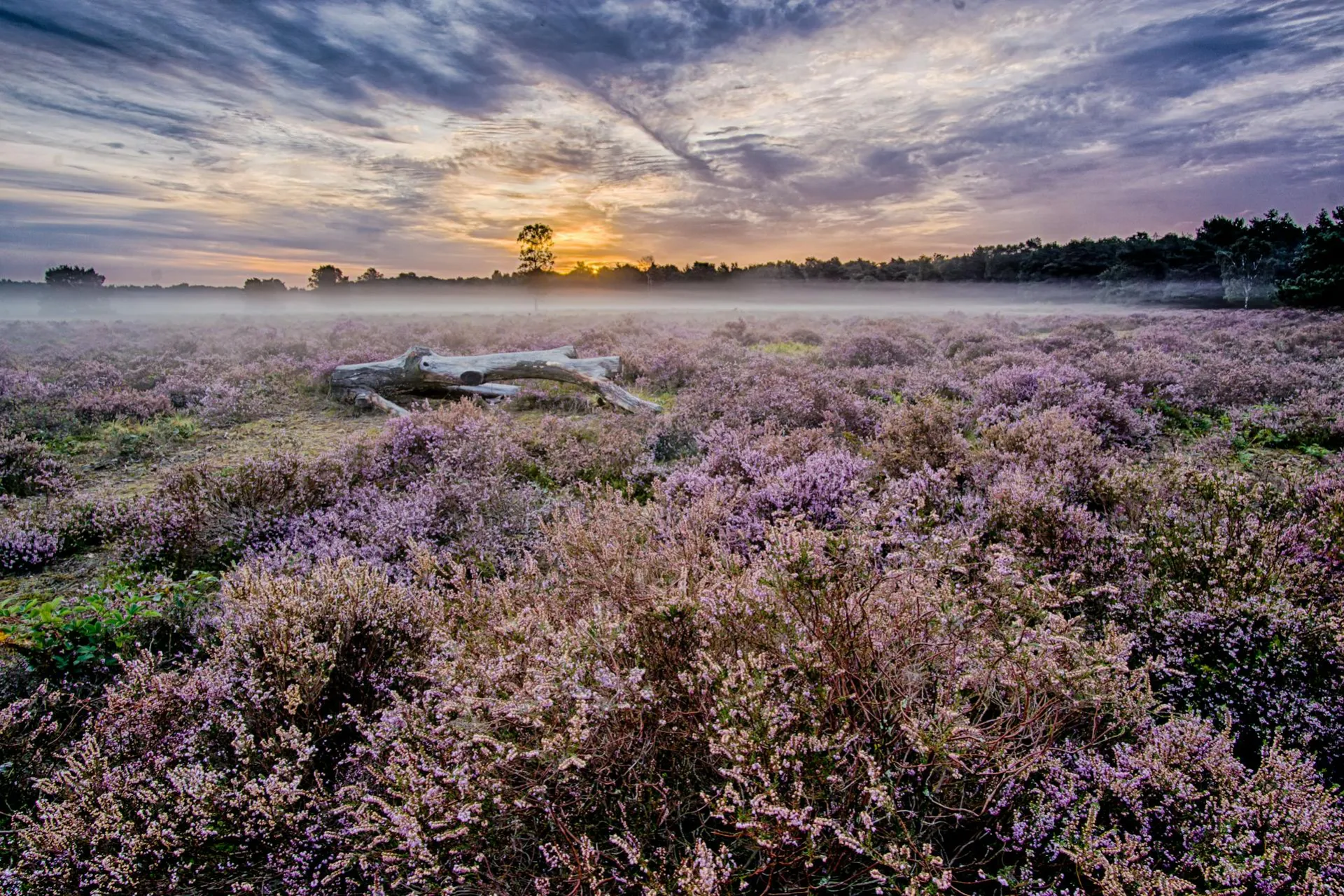
Zoom with the Mouse Wheel
In Scroll and Zoom mode the mouse wheel zooms the image and dragging moves it around. You set how far visitors can zoom out and in, and can add plus and minus buttons for anyone without a wheel. Both viewers here swap the pointer for an icon, so it's clear the image can move. The second one zooms to 300% and hides the buttons.

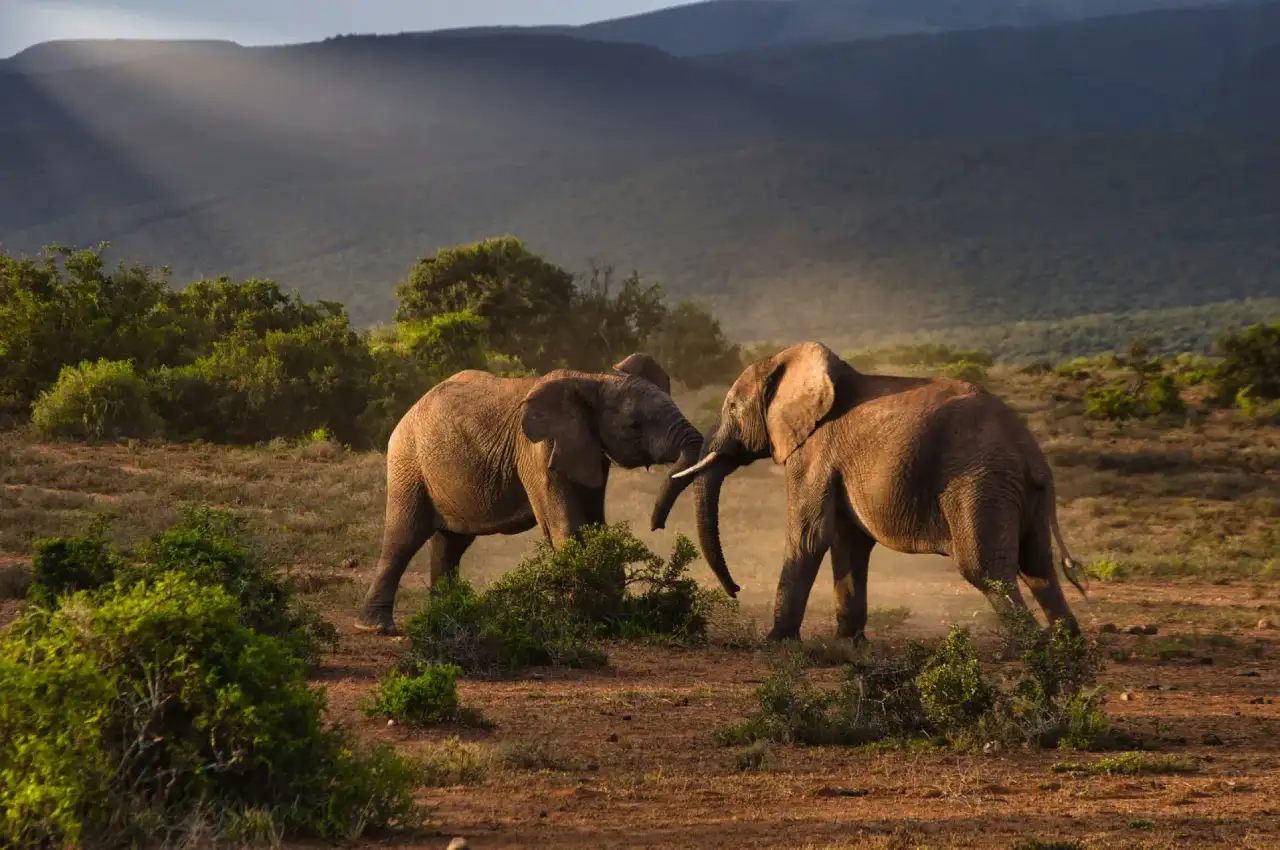
A Slow Pan That Runs by Itself
Ken Burns Autoplay moves across an enlarged image along the route you pick: Drift goes from one corner to the opposite one and back, Corners visits all four, Random wanders. Start it on load, on hover, on click or when it scrolls into view, and loop it for a moving hero image. This one tours the corners and starts when you scroll to it. Visitors who ask their device for less motion see a still image instead.
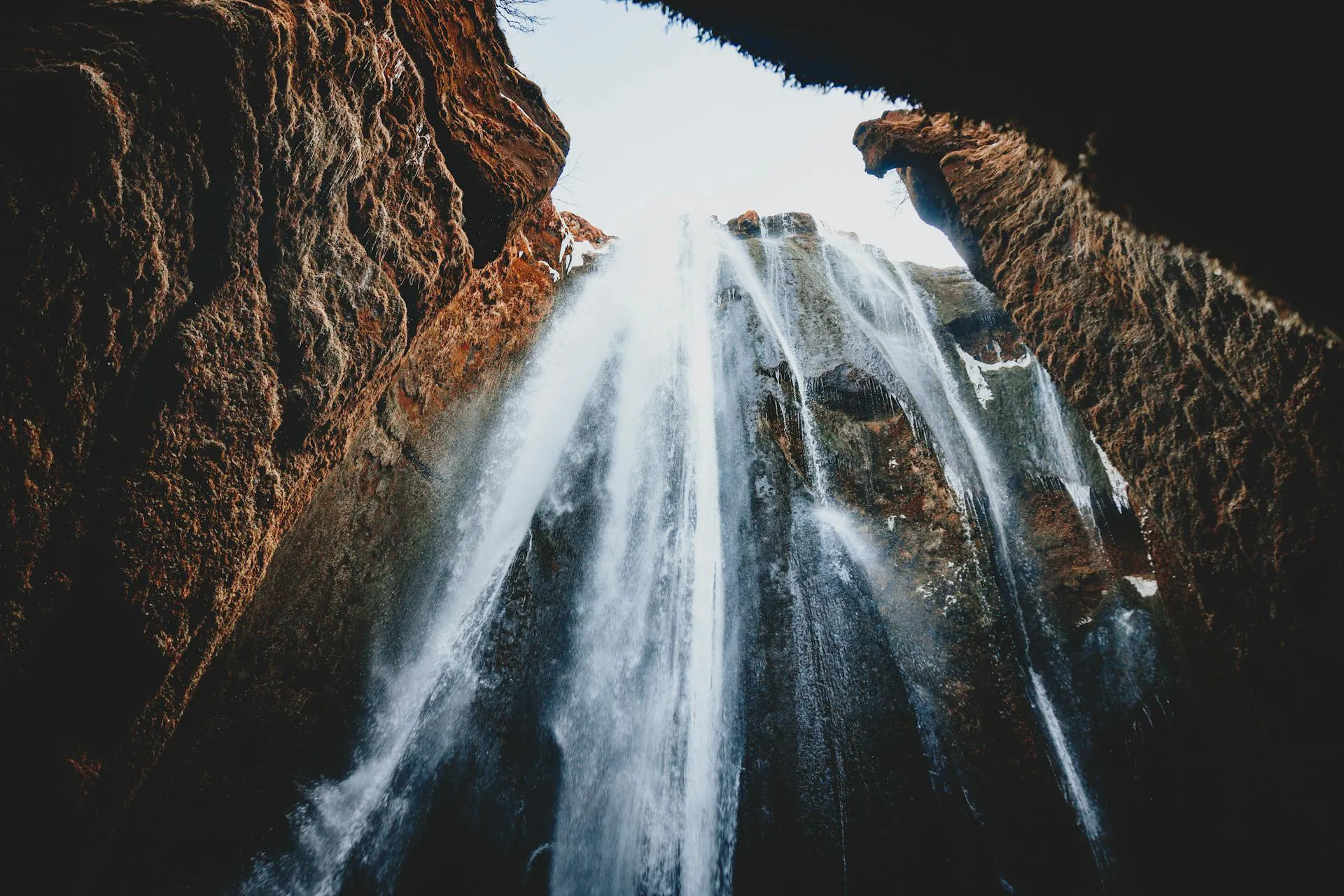
Magnify the Detail Under the Cursor
Hover Magnify zooms into the part of the image under the pointer, the way a store shows the stitching on a jacket. Magnify Strength sets how far it goes in, and when the cursor leaves, the photo either returns to its full view or stays where it was. The first viewer starts on hover at 80%; the second waits for a click and goes to 100%.
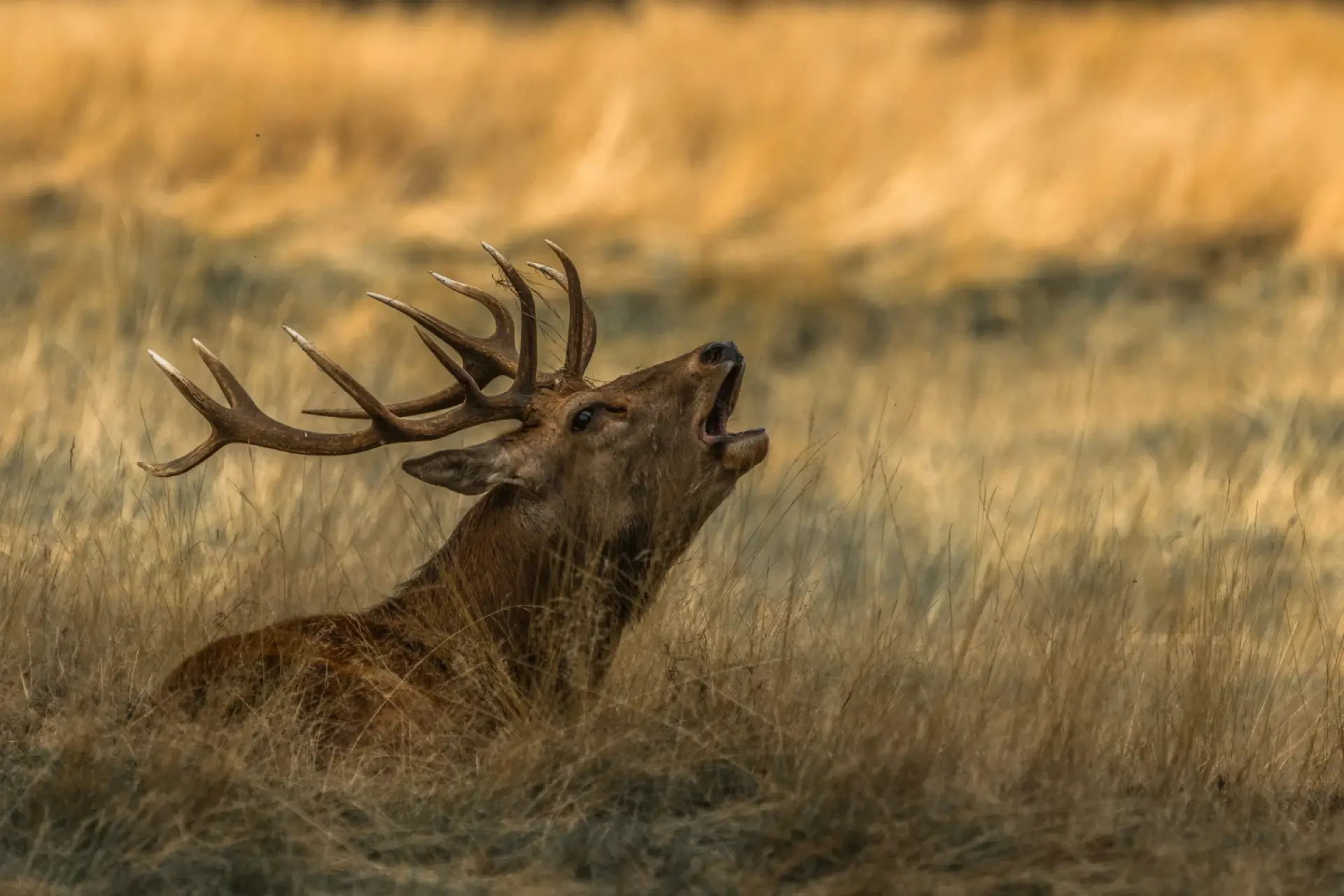
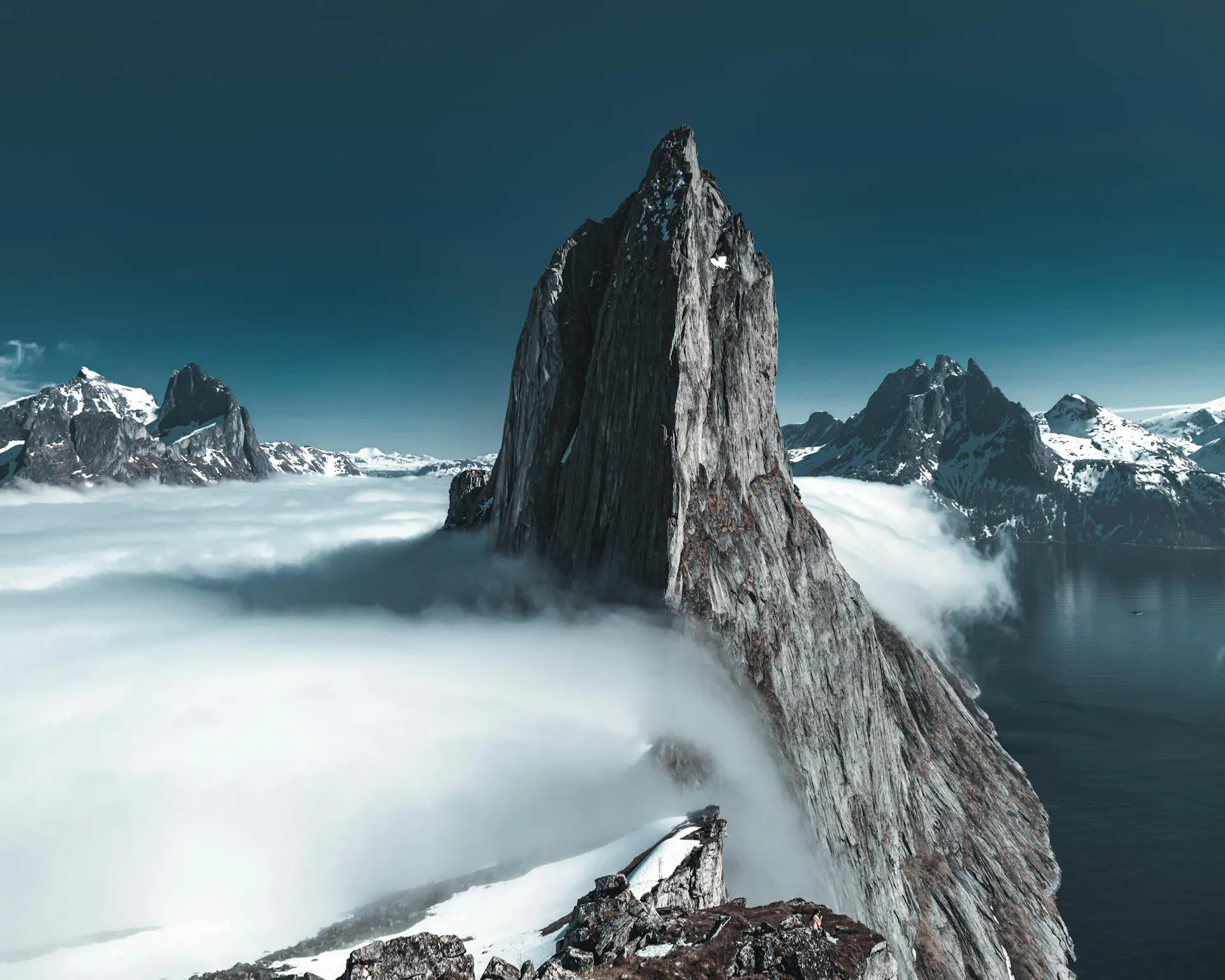
Find Your Way with a Minimap
Explore and Overview opens the image larger than its frame. Drag the photo or the marker in the minimap and the two move together, and with Momentum on, the image glides for a moment after you let go. Put the minimap in any corner, set its width, and give the marker its own size, color and border, like the pink one on the right.